Showing posts with label Browser. Show all posts

Tuesday, November 25, 2008

What Google Chrome Misses???

Many of you may have already used Google Chrome and found the difference between it and other internet browsers. For those who are yet to test Google Chrome, here are some features you’ll miss with some screenshots while using Google Chrome.

No History List
If you are currently using Internet Explorer or Firefox, you can see a button to the right of forward button which opens the list of recently visited pages. This list isn’t available in Google Chrome which make difficult to browse recently visited pages. However, if you click on forward or back button for around two seconds, the your recent browing history will appear. This feature isn’t what Google Chrome misses but actually has modified it.

Google Chrome History

No Properties on Right Click
How often do you use Right Click > Properties on your browser? Talking about me, I use it too often that internet browsing without it cannot even be imagined. Google Chrome misses it. You cannot view the property of document, image, or any link. When you right click on a document, you cannot see a properties option there which makes you unable to inspect the property of any item.
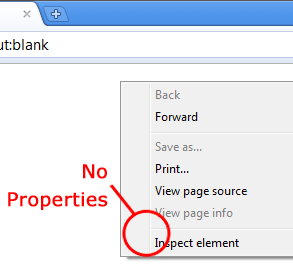
No Properties on Right Click

No Feed Reader
Though I cannot create any screenshot for this drawback, I will try to explain it. Google Chrome misses feed button which allows you to subscribe to respective feed in Internet Explorer or Firefox. Google Chrome cannot read XML files. When XML file is opened in Google Chrome Browser, it displays a plain test whereas in Internet Explorer and Firefox, RSS feeds are parsed properly and displayed to make it readable.

Conclusion
I believe Google hurried to release Chrome. It should have waited few months more to develop some strong features to defeat it’s competitor like Internet Explorer,Mozilla Firefox etc.,. However, being an open source browser, you can add any feature into Chrome. In default, Google Chrome has nothing new to offer.

Saturday, September 20, 2008

Enable Right Click On Sites That Disable It

These days lots of websites disable right clicking function of the mouse button. It's really, really annoying. This is done so that you don't steal (via right-click->save picture) their photos or images or any other goodies. Unfortunately, it disables all right-click functionality: copy, paste, open in new window.

But here's a trick to bypass that. But sadly it only works in Internet Explorer:
Follow these steps:

  • 1. Open Internet Explorer.
  • 2. Go to "Tools"->"Internet Options".
  • 3. Click on the "Security" tab.
  • 4. Then click on "Custom Level".
  • 5. Scroll down to the "Scripting" section.
  • 6. Now set "Active Scripting" to "Disable".
  • 7. Now a dialog box will appear. Click yes to confirm the change.
  • 8. Click "OK" and close the tools window.

Note: If this tweak causes some problem while surfing some sites, you'll have to turn that setting back to "Enable". This is because generally javascripts enhances a website.

Thursday, September 11, 2008

Google Chrome (BETA) for Windows


Google Chrome is a browser that combines a minimal design with sophisticated technology to make the web faster, safer, and easier.

Google Chrome is Very fast and is excellent browser.Its working pretty good.Download it and See its efficiency and enjoy it

To Download it click here

Tuesday, July 29, 2008

Ex-Googler’s Launches Another Search Engine - Cuil


Cuil (probably pronounced as cool) is a search engine which is built by some Ex-Googlers. Currently the main page on their site says that they have indexed 12161789299 web pages till now. It has started taking queries from public from today. Sounds Good but is it really? I don’t feel so.

Continue reading ‘Ex-Googler’s Launches Another Search Engine - Cuil’

To see how Cuil works click here

Wednesday, July 16, 2008

Auto Shutdown PC after download completes in Firefox!

Auto Shutdown PC after download completes in Firefox!
Firefox has got a good inbuilt download manager but it still lacks many features that are offered by commercial download managers. One of those missing features is “Auto Shutdown after Download Completion”.

Firefox plugin “Auto Shutdown - InBasic” comes in role here. It simply shutdowns your computer when all the downloads running in Firefox are completed. It is a useful plugin and it gets handy when you are in hurry of leaving your system but you are stuck waiting for the download to get over.


Continue reading ‘Auto Shutdown PC after download completes in Firefox!’

Thursday, June 26, 2008

RESOURCES(Mozilla Firefox Extensions)

1)Stop Autoplay addons.mozilla.org/en-us/firefox/addon/1765
2)PANIC:addons.mozilla.org/en-us/firefox/addon/6367
3)TabRenamizer: addons.mozilla.org/en-us/firefox/addon/2987
4)Fast Video Downloder: addons.mozilla.org/en-us/firefox/addon/3590
5)Download Helper: addons.mozilla.org/en-us/firefox/addon/3006
6)File Uploader: www.fileuploader.com
7)File FTP: addons.mozilla.org/en-us/firefox/addon/684
8)ChatZilla: chatzilla.hacksrus.com
9)News Fox: addons.mozilla.org/en-us/firefox/addon/629
10)Free Access Plus: addons.mozilla.org/en-us/firefox/addon/6139

Wednesday, May 14, 2008

**Clear Google Search History-Maintain Your Privacy **

Clear Google Search History-Maintain Privacy:
One of the most common questions I got from my friends is..“How do I clear my search history from the Google search box?”
This is something most of the people will be curious about as it is a matter of privacy and to be known when you wanted to keep your serach data unseen to other users of your system..This is how you can get it done...

For Internet Explorer users:
The search history that displays in the search box on the Google homepage is stored by your browser, not by Google. You can clear the history or disable this feature entirely by following these steps:
• Go to the “Tools” menu
• Select “Internet Options”
• Select the “Content” tab
• Within the “Personal Information” area, select “AutoComplete”
• To clear the current history, click on “Clear Forms”
• To disable this feature entirely, uncheck the “Forms” box
You can also delete individual entries from your search history by using the Down arrow key to highlight a previous search and then pressing the Delete key.


For Firefox users:
As with Internet Explorer, you can also clear the search history or disable the feature in Firefox.
• Go to the “Tools” menu
• Select “Options”
• Select the “Privacy” tab
• Within the “Saved Form Information” area:
• To clear the current history, click on “Clear”
• To disable this feature entirely, uncheck the “Save information I enter in web page forms and the search bar”
Another way to very quickly clear the search history is to place your cursor in the search box, right click and select “clear search history.” This is faster for on-the-fly clearing.
You can also delete individual entries from your search history by using the Down arrow key to highlight a previous search and then pressing the Shift-Delete key.

NOTE:
The Ultimate solution to get rid of all the personal problems:click here to see the solution

Friday, March 7, 2008

SEARCH FINALLY GOES OPEN

hiii new search Engine came in to existence named as "WIKIA".
WIKIA search is online and it'salpha testing time http://alpha.search.wikia.com is an effort by wikia (http://www.wikia.com) to "......develop and popularize a freely licensed (open source) search engine."Inorder to make use of that search engine the URL is www.wikia.com .
try it out to see its advancements and get its facilities so that u can estimate its success.
Your Ad Here
Custom Search

Enter your email address:

Delivered by FeedBurner